Edit CodeTemplate
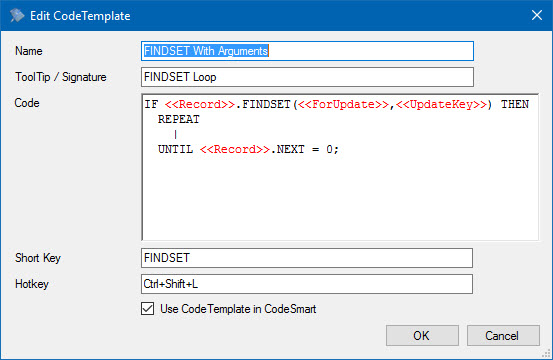
Screenshot of editing a Code Template in CodeGenius Studio
| Field | Description |
| Name | Name of the Code Template. |
| ToolTip / Signature | The tooltip (or signature) of the template. This will be displayed when hovering over this item in the CodeSmart window. |
| Code | The Code Template code. |
| Hotkey | A hotkey combination that allows you to activate this at any time. |
| Use Code Template in CodeSmart | When checked this Code Template will appear in CodeSmart. |
Default Tags
CodeGenius Studio contains a set of 5 default tags. These are tags that refer to some setting within CodeGenius Studio and therefore you can add them to your template without CodeGenius Studio asking you their values.
| Tag | Description |
| <<Author>> | Value in the author field of the preferences section. |
| <<Initials>> | Value in the initials field of the preferences section. |
| <<Company>> | Value in the company field of the preferences section. |
| <<Date>> or <<Date(yyyy-mm-dd)>> | The system date. (may include formatting) |
| <<Time>> or <<Time(hh:mm)>> | The system time. (may include formatting) |
The date and time tags can have formatting. When you write a format into these tags you must specify a valid format as show in the above examples.