Edit Dynamics NAV
Screenshot of the Code Tags section in CodeGenius Studio
Define your own Tags that are like the Author, Initials, Company, Date, and Time Tag. These are automatically recognized in the Code Template window by appearing blue (instead of red).
When you have a certain variable in a template, but this almost never changes you could use Code Tags for this. You simply define a name for the Code Tag and supply a value. When inserting a Code Template with this tag CodeGenius Studio will replace the tag with this value. CodeGenius Studio will not ask you for the value. When you need to change the value you just edit it here and you are done.
Add and Delete
These buttons allow you to manipulate a Code Tag. To edit a Code Tag just modify the fields directly in this section.
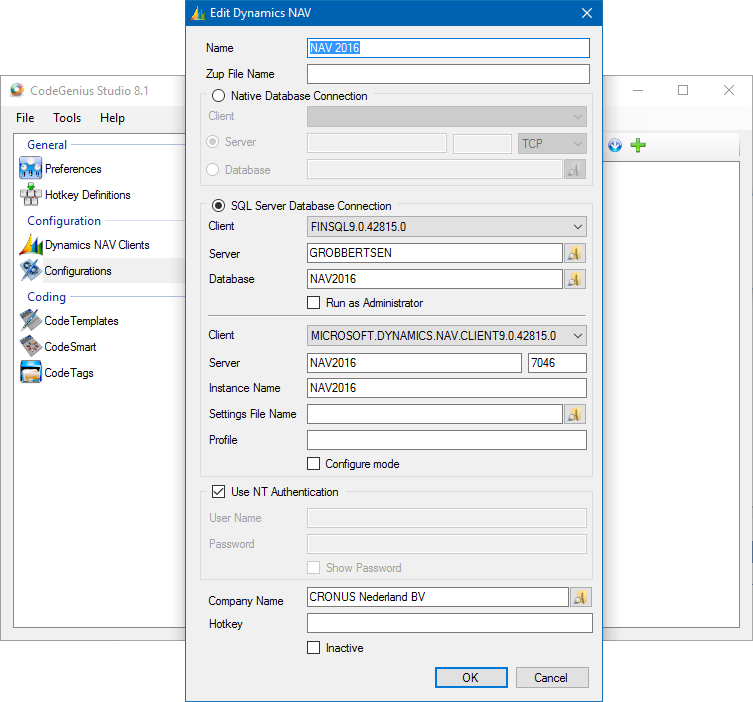
Native Database Connection
| Field | Description |
| Client | One of the configured clients in the Dynamics NAV Clients section. |
| Server | Consists of Server name, Port number and Connection Type. When you do not want to use a port number set the port number to 0. |
| Database | Select a database file (fdb file) to make a direct (local) connection to the database. |
SQL Server Database Connection
| Field | Description |
| Client | One of the configured SQL Server clients in the Dynamics NAV Clients section. |
| Server | Name of the SQL server. |
| Database | Name of the database. |
| Client | One of the configured Windows clients in the Dynamics NAV Clients section. |
| Server | Name of the service tier server and port number |
| Instance | Name of the instance. |
| Settings File Name | Path to settings file |
| Profile | The profile the client should run in. |
| Configure | Start Roles Tailored Client in configure mode. |
| Company Name | The default company that should be opened. |
Other fields
| Field | Description |
| Name | Name of the configuration. This name is used for the zup file, unless you specify a different file name in Zup File Name. |
| Zup File Name | Name of the zup file. This allows you to use the same zup file for several configurations. |
| Use NT Authentication | Check this field if you want to use your windows account to log into Dynamics NAV. When using a SQL server database connection this is checked by default. |
| User Name | User name of the database login. |
| Password | Password of the database login. |
| Company Name | The default company that should be opened. |
| Hotkey | A hotkey combination that allows you to activate this at any time. |
| Inactive | When checked this configuration is disabled. It won’t be displayed in the menu and the hotkey is disabled. |