Configurations
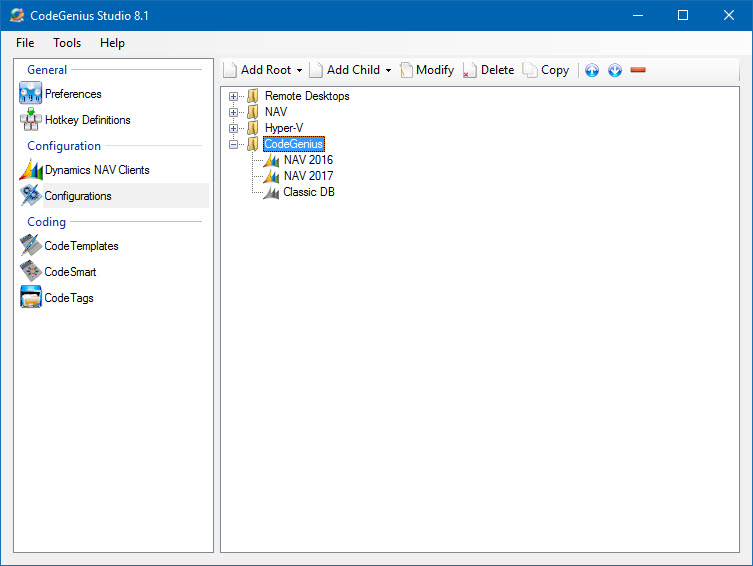
Screenshot of the Configurations section in CodeGenius Studio
Dynamics NAV clients and Third Party applications are configured in the same place. Here you add the Dynamics NAV clients and Third Party applications. You can now group applications together that actually fit together.
Add Root
Clicking on this button will open a menu with three choices: Folder, Dynamics NAV and Third Party. Selecting one of these items will create this item in the root of the tree view.
Add Child
Clicking on this button will open a menu with three choices: Folder, Dynamics NAV and Third Party. Selecting one of these items will create this item as a sub item of the selected folder.
Modify and Delete
Allows you to make changes to the item and/or delete it.
Up and Down
With these buttons you can move the selected item (and all sub items up and down within the node of the tree view). To move it to another branch use drag and drop.
Copy
Creates a new item based on the selected item and places it in the same node of the tree.
Expand/Collapse
Click this button to expand or collapse all items.
Drag and dropping items is possible. The item will always be inserted after the item you drop the dragged item on. This means that you must have an item in a folder before you can drop an item in that folder.