Preferences
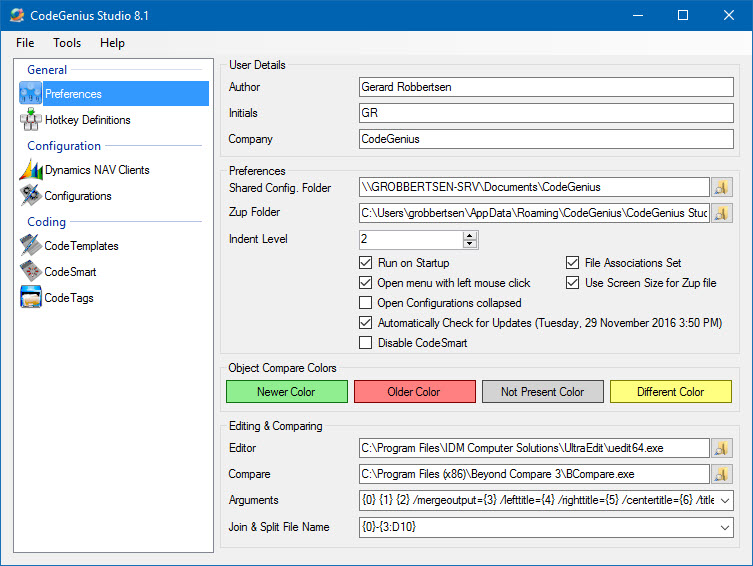
Screenshot of the preferences section in CodeGenius Studio
| Field | Description |
| Author | The name of the Author. This field is used in templates with the tag <<Author>>. |
| Initials | The initials of the Author. This field is used in templates with the tag <<Initials>>. |
| Company | The name of the Company. This field is used in templates with the tag <<Company>>. |
| Shared Config. Folder | The folder where the Shared Configuration is stored. Regular paths are possible. However, it is advised to use a UNC path (\\servername\sharename\folder). After setting this value CodeGenius Studio must be restarted manually! |
| Zup Folder | This is the folder where the zup-files will be dropped when starting a Dynamics NAV configuration. |
| Indent Level | Here you can specify how many spaces you wish to use with the block-indent feature. |
| Run CodeGenius Studio on Startup | When checked CodeGenius Studio will start when Windows is started. |
| Open CodeGenius Studio menu with left mouse click | When checked a left mouse click on the tray icon will open the menu. By default, only the right mouse click is supported. |
| Open Configurations with all items collapsed | When checked the Configurations section will open with all the items collapsed. This can be useful when having a very large set of configurations. |
| Automatically Check for Updates | When checked CodeGenius Studio will perform a check for updates every two days. It also displays the when the last check was performed. |
| Object Compare Colors | When comparing object files (fob) CodeGenius Studio will use the colors indicated to visually enhance the differences. By clicking on the color you can change this color. |
| Editor | This will start the editor of your choice when doing a directory compare using CodeGenius Studio. |
| Compare | This will be the compare/merge tool used by CodeGenius Studio when doing a directory compare.
By default it supports Araxis Merge and Beyond Compare. However, any tool that does three-way-merging and supports command line parameters can be used. |
| Arguments | The arguments used for the compare tool you have chosen. If you selected either Araxis or Beyond Compare the arguments are automatically filled.
Explanation of the fields available: |